
Capture More. Explain Better. Share Faster.
Capture any part of your screen, automatically scroll through long content, annotate with precision, and share in seconds.
Processed on your device No account No watermarks
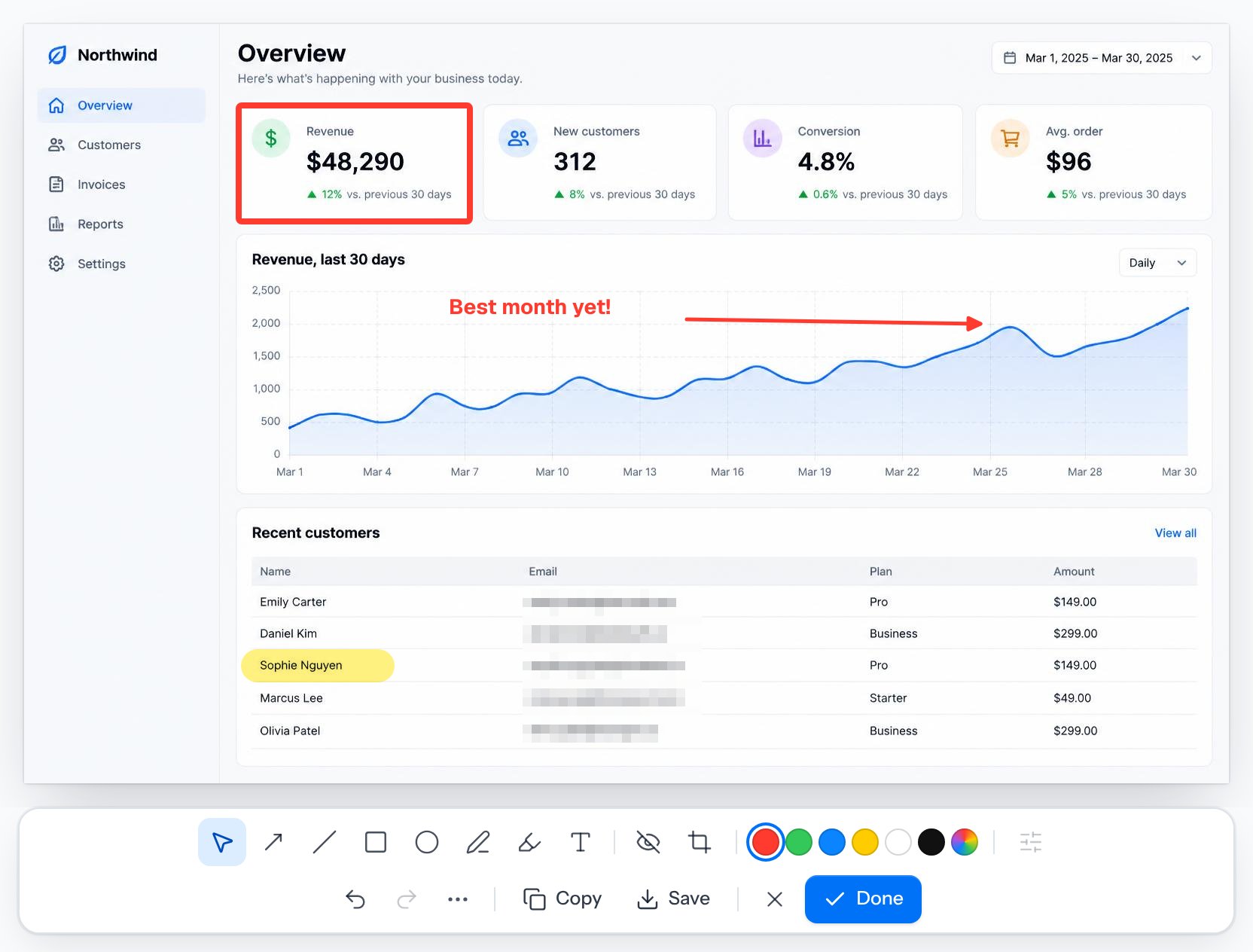
Easy to use. Powerful when you need it.
Simple on day one. Still delightful on day one hundred.
Fast
One shortcut to capture, one click to share. Your screenshot is ready before you've lost your train of thought.
Easy
Every tool sits right where you expect it. No menus to dig through, no settings to learn first.
Private
Everything happens on your own device. Nothing is uploaded, synced or stored anywhere else.
How it works
Capture → Annotate → Copy or Save
Three steps, a few seconds. That's the whole workflow.
- 1
Capture
Press the shortcut and pick an area, a window, the whole screen — or a long scrolling page.
- 2
Annotate
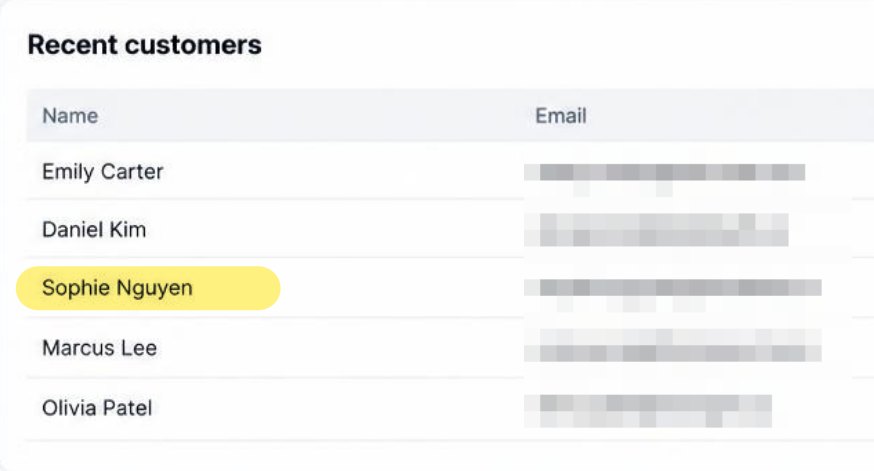
Add arrows, boxes, text and highlights. Blur anything private in a single drag.
- 3
Copy or Save
Copy it straight to your clipboard, or save a full-size PNG or JPG. Paste it anywhere.
Four capture modes
Area. Window. Screen. Scrolling.
Whatever you need to show, there's a mode for it — always at full, sharp resolution.
Area
Drag over exactly what you need. Pixel-sharp on Retina displays, and Esc cancels.
Window
Pick any open window and get it at its full, crisp size — nothing around it.
Screen
Your whole display in one click, or choose which one when you have several.
Scrolling
Select an area and CatchScreen scrolls for you, joining it into one tall image.
See how it worksAll four modes are in the Mac app. Already have a screenshot? Open it in the web editor.
Automatic scrolling capture
Mac · Early accessThe whole page, not just what fits on screen.
Long articles, chat threads and documents become one tall, crisp screenshot — and you don't have to scroll a thing.
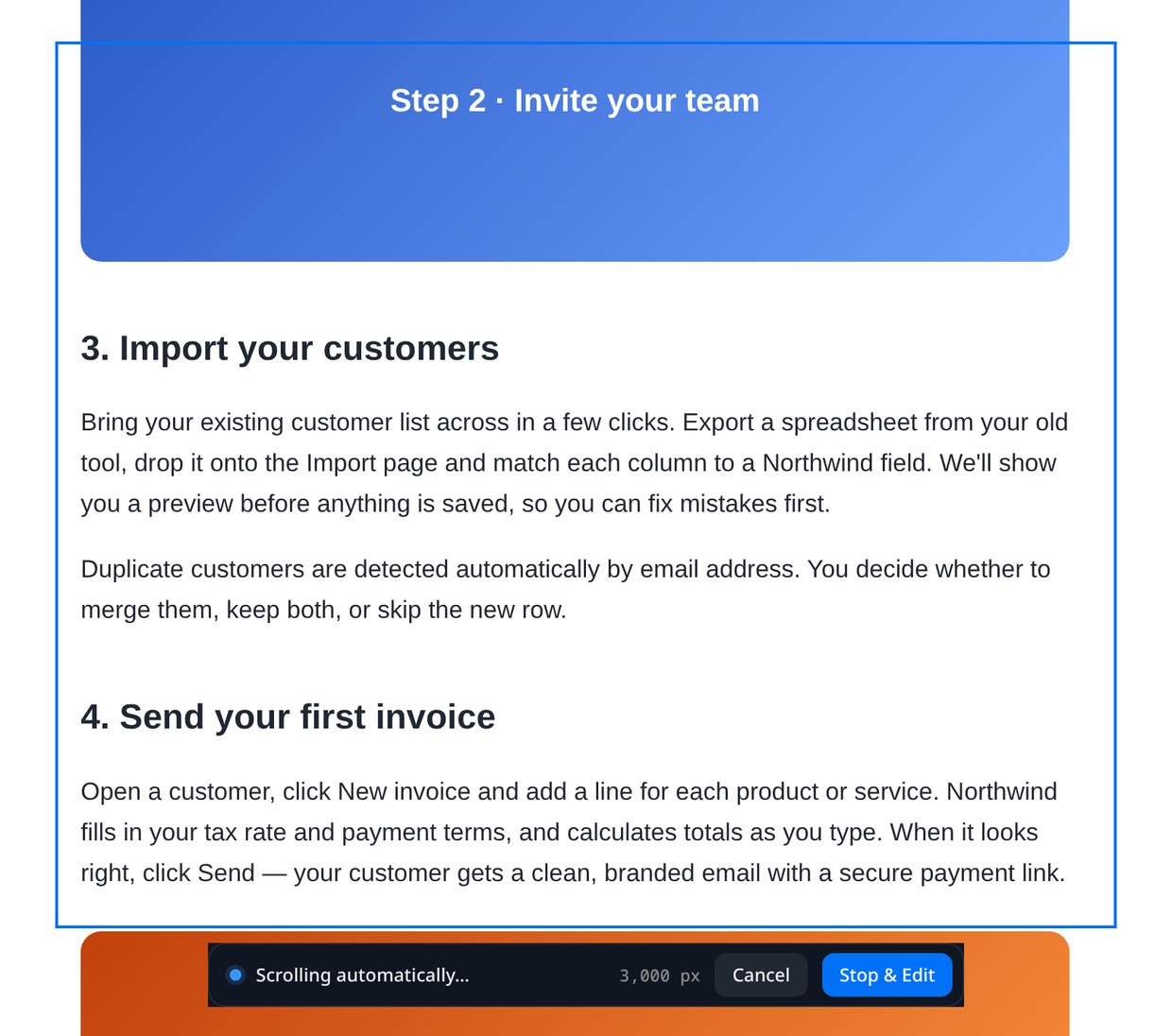
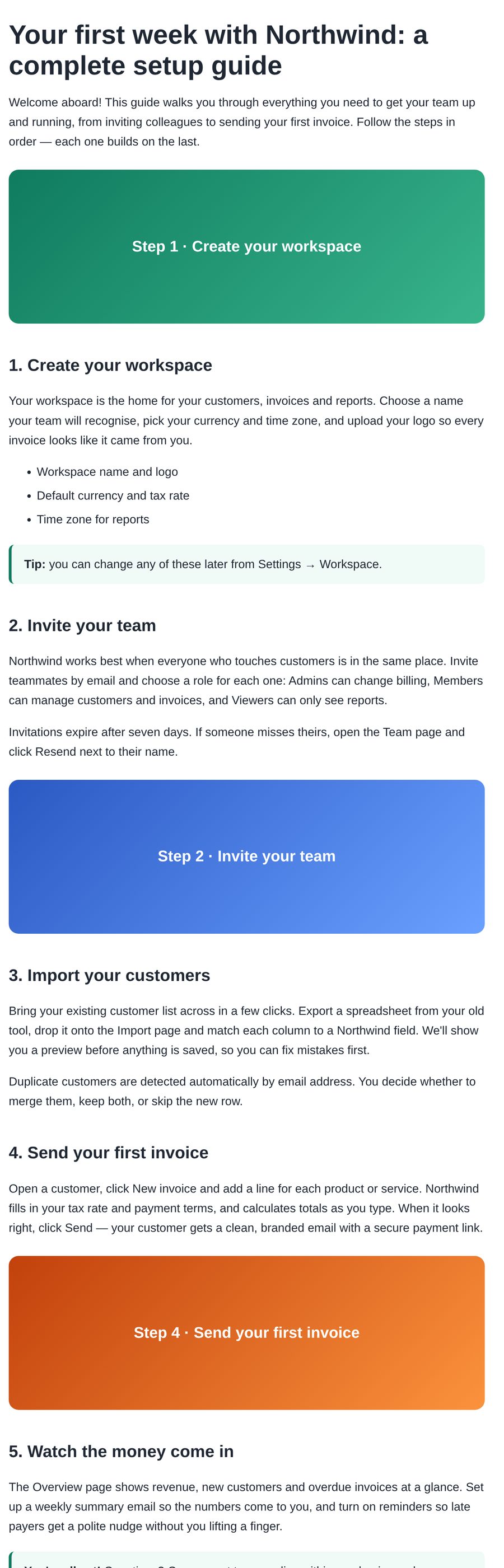 1440 × 4482 px
- 1
Select the area
Drag over the part that scrolls — an article, a chat, a long document.
- 2
CatchScreen scrolls for you
It moves down step by step and joins everything into one seamless image.
- 3
Stop whenever you like
It stops at the bottom by itself, or click Stop & Edit at any moment.
- 4
Straight into the editor
Your tall screenshot opens ready to crop, annotate, copy or save.
- Pauses and tells you when a page is unclear — it never guesses.
- Move your mouse and you're back in control.
- Uses macOS Accessibility permission only to scroll the area you chose.
Compact floating editor
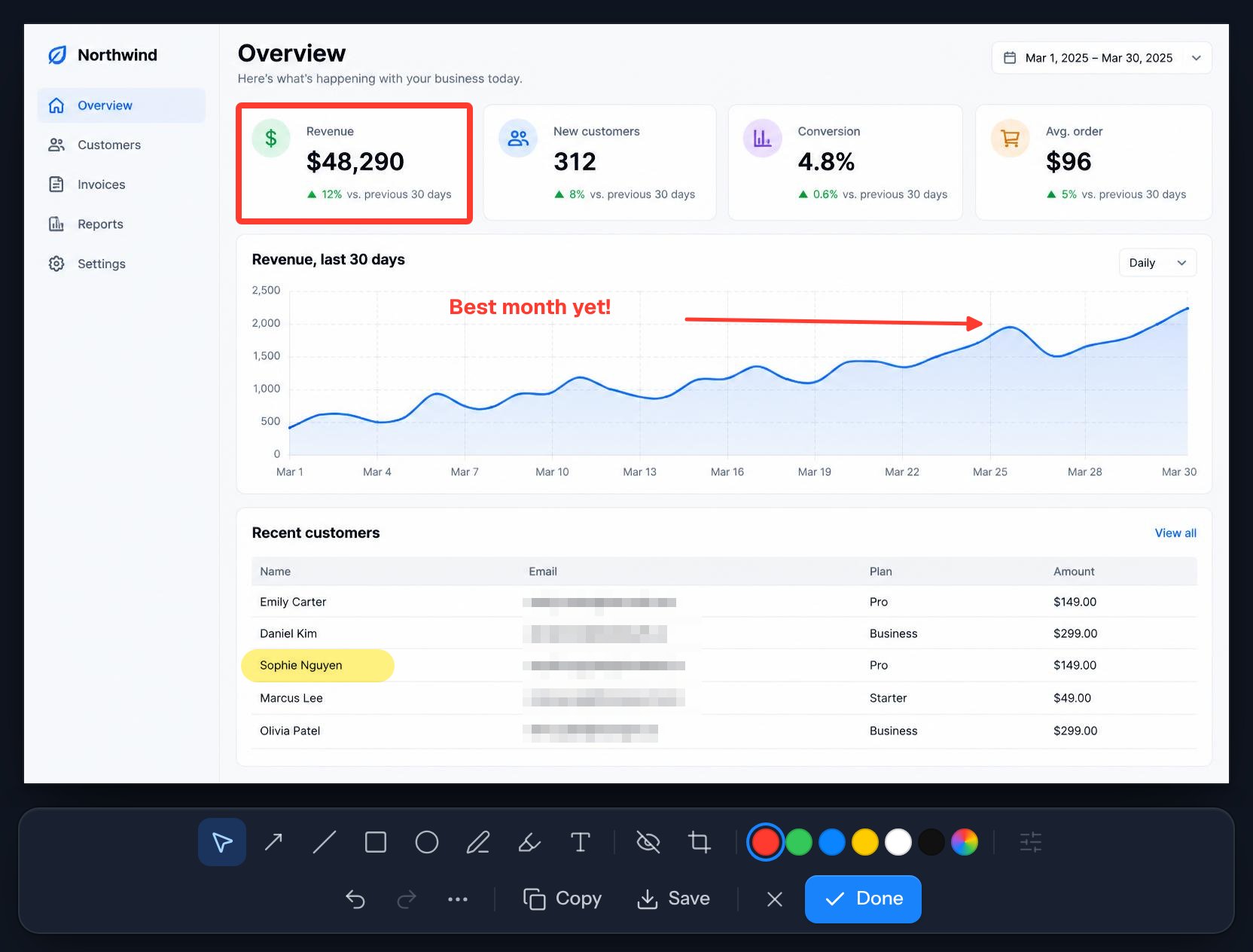
Annotate in a window that stays out of your way.
Every capture opens in a small, focused editor sized to your screenshot.
- Opens right next to your work — no browser tab, no full-screen takeover
- The toolbar sits below your screenshot, so it never covers what you're marking up
- Color presets, undo and redo, Copy, Save and Done — all one click away
- Closing never loses work: CatchScreen asks before discarding anything
Annotation tools
Every tool you need. Nothing you don't.
Explain, point out and tidy up with precision. Each tool has a one-letter shortcut, and everything you add stays editable until you share.
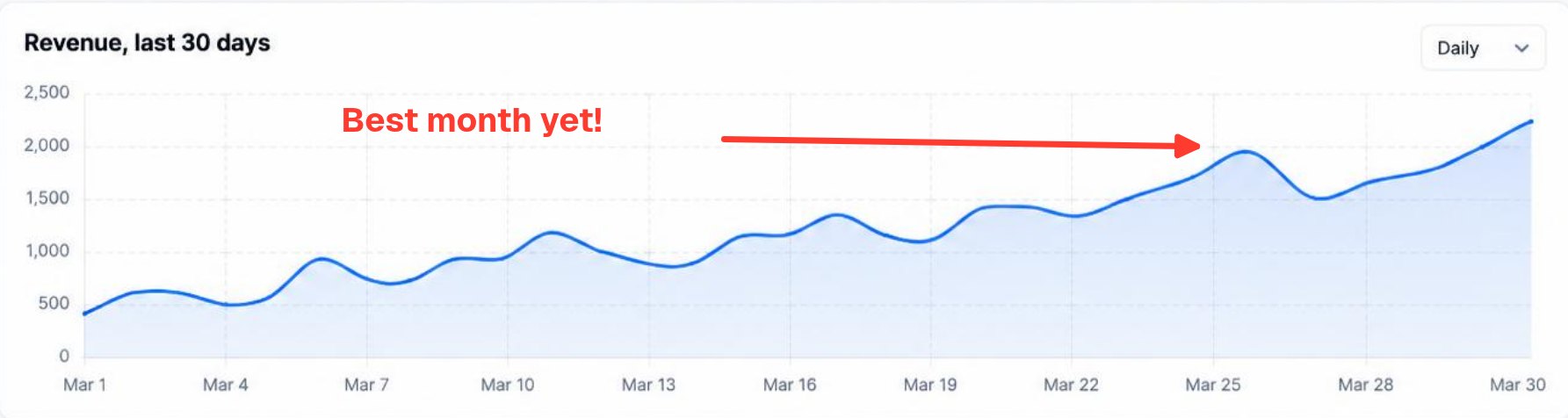
Arrow
Point at what matters with clean, bold arrows.
Rectangle
Frame a button, a number or a whole section.
Ellipse
Circle the one detail everyone should see.
Line
Straight lines for underlines and connections.
Text
Add labels and notes in any color and size.
Highlighter
Mark up text just like you would on paper.
Pen
Sketch freely when a shape won't do.
Blur & redact
Blur, pixelate or black out private details.
Crop
Trim to the part that matters — change it any time.
Select & move
Move, resize and restyle anything you've added.
- Undo & redo every step
- Colors, sizes & opacity
- Zoom in for detail work
- Light & dark themes
Private by design
Your screenshots stay yours.
Share a screenshot without sharing someone's email address, a password or a customer's details.
- Processed locally — screenshots never leave your device
- No account, no cloud library, no tracking of what you capture
- Blur and redaction are baked into the pixels when you share — they can't be peeled off
Share
Copy, paste, done.
Copy & paste
Full-resolution copy to your clipboard. Paste into chat, email or docs.
Save PNG or JPG
Original size by default, with tidy names like catchscreen-2026-11-03-142530.png.
No watermarks
Clean images with no branding added — your screenshots look like yours.
Light & dark
Right at home, day or night.
A calm, focused editor that keeps your screenshot front and center — in whichever theme you like.
Mac & Windows
Made for your desktop.
On your Mac, CatchScreen lives in the menu bar — always one shortcut away.
CatchScreen for Mac
Early accessFor Macs with Apple Silicon. Menu-bar app with area, window, screen and automatic scrolling capture, plus the compact floating editor.
- All four capture modes
- Automatic scrolling capture
- ⇧⌘2 to capture an area from anywhere
We're testing early-access builds now. A public download will be available here once testing is complete.
CatchScreen for Windows
Coming soonThe same simple capture and annotation tools, in your system tray. We'll release it once a Windows build has been fully tested.
Web editor
Available nowAnnotate any screenshot in your browser.
Chrome & Edge extension
Early accessCapture an area or the visible page and land straight in the editor.
FAQ
Questions, answered.
Does CatchScreen record video?
No. CatchScreen is made for screenshots only — still images you can annotate and share in seconds.
How does automatic scrolling capture work?
In the Mac app, choose Scrolling Capture and select the area you want — for example an article or a chat. CatchScreen scrolls that area for you, step by step, and joins everything into one tall image. It stops at the bottom, or whenever you click Stop & Edit. If the page is unclear (for example it keeps changing), it pauses and tells you instead of guessing.
Are my screenshots uploaded anywhere?
No. Screenshots are processed on your own device. CatchScreen doesn't upload them, store them on a server or send them to any service. They stay in memory until you copy, save or close them.
When is the Windows version coming?
Windows is coming soon. We'll make it available once a Windows build has been fully tested.
Your next screenshot, but better.
Open a screenshot in the web editor and try every tool — no sign-up, nothing uploaded.
Try the web editor